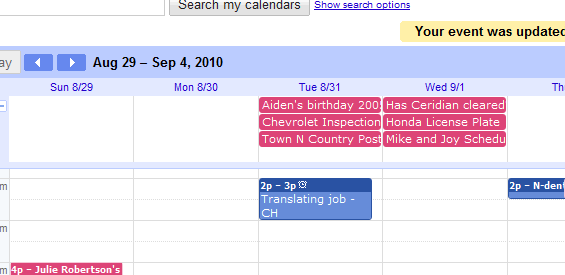
We get lots of questions from people asking us how they can sync calendars, share calendars, and keep track of all their appointments and events even if they don’t have a phone with internet access. For families and for businesses, there are a lot of complicated and expensive options to do that. Amazingly enough, though, the most comprehensive solutions is free, brought to us by our friends at…Google.
Did you know…
- If you use Outlook, you can sync it to a Google calendar. If you have Outlook on two computers, you can sync all three. There are other email programs that sync with Google calendars, too. Google it for more details. 🙂
- If each person in your family has a Google calendar, you can share them with each other, so that everyone in a family sees a color coded calendar which shows the entire family’s events.
- Google will email you your schedule for the next day. (It emails you at 5 am your time. No choice on the time. I wish it would email me 9:00 pm the night before.)
- Google will text you event reminders.
- AND you can add events to your calendar via TEXT.
For example, today I texted myself an appointment. It went to my Google calendar, which is visible on everyone else’s calendars in the house. It also appears on the Outlook calendars on BOTH of my computers. So noone has the excuse of “you didn’t tell me the family reunion was this Sunday”. It’s on your calendar, son.
Here’s how it all works together
First of all, you have to have a Gmail account, which has a calendar attached. And you have to be using the calendar. If you’re not (and I wasn’t) the good news is that you can sync most email client calendars to your Google Calendar. Here’s how to sync your Google calendar to Outlook, for example.
How to sync the Google calendars for a family or business.
- Click settings>calendar settings
- Click the “Calendars” tab
- Click on the calendar you wish to share. A new window will open.
- Click the “Share this calendar” tab
- in the “Share with specific people section”, enter the gmail addresses of the people with whom you want to share.
You are now synced!
How to connect your Google Calendar to your cell phone. (Only one Gmail account per phone number.)
- Go back to “Calendar Settings”.
- Click on the “Mobile Setup” tab.
- Fill in the fields for your cell phone. Watch those preferences – Google will text, popup or email you before each event.
- Google will text you a confirmation code.
- OPEN the text message. If you don’t you won’t see the code, and you may confuse Google’s text number for it.
- Enter the verification code and click “Save”.
How to add events to your calendar with your NON web enabled phone.
If you’re away from your desk and you want to add an appointment to your calendar, you can! Just text GVENT (48368), and write the appointment like you would on your calendar. “Appt with realtor in Mebane at 1 pm on September 10.” Or “Chamber of Commerce meeting tomorrow at 12:30.” And Google will figure out what you mean, add it to your calendar, then text you that they’ve done it.
You can also:
Get your daily schedule emailed to you.
Get text reminders from your Gmail calendar.
Check your Google calendar from your phone.
And lots more.
This is another example of how Google Apps offers ways for you to be more productive, save money, and save time.
Here’s our calendar.